


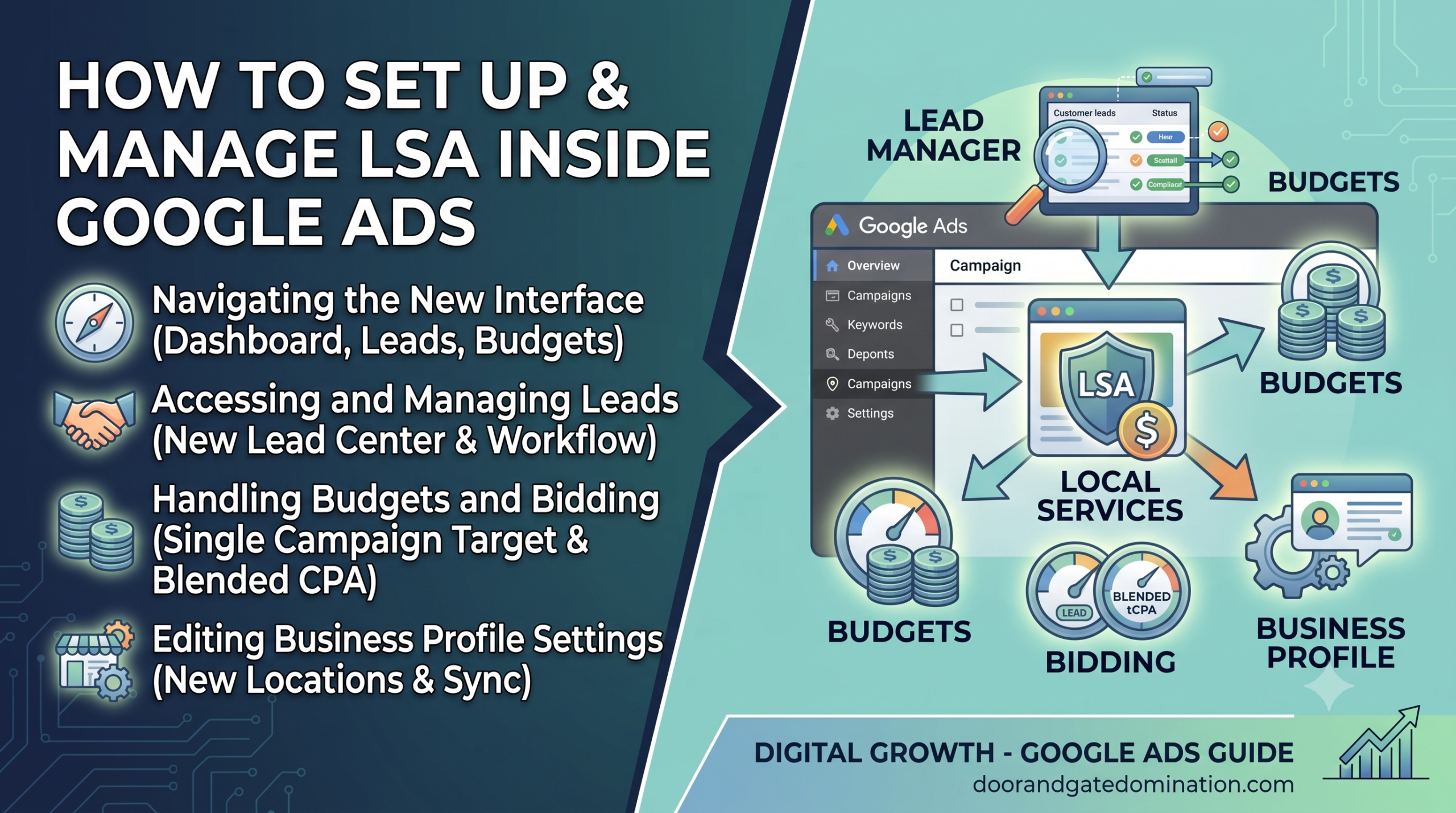
Your Local Services Ads campaign now lives in Google Ads, and the day-to-day workflow looks a little different than what you’re used to. Instead of a standalone LSA dashboard, you’re managing leads, budgets, and bidding from inside the same platform you may already use for Search or Shopping campaigns.
That shift touches more than just where you log in. Learning to manage Local Services Ads in Google Ads means getting comfortable with a few new locations for leads, budgets, bidding, and business profile settings, some of which work a bit differently than they did in the old dashboard. Knowing exactly where to look and what changed along the way saves you from hunting through menus or second-guessing whether something transferred correctly.
What Changes for Your Day-to-Day Management
Local Services campaigns now run as a distinct Performance Max campaign type built for pay-per-lead goals. Leads live under Goals > Conversions > Leads instead of a separate inbox, and your budgets, service categories, and photos transfer automatically, though they’re worth reviewing. Manual bidding is gone, so budget and Target CPA adjustments work differently than before, and Business Profile updates now sync directly into your campaign settings.
Finding Your Local Services Campaign in Google Ads
Once your account migrates, your Local Services campaign appears in your regular Google Ads campaign list, labeled as a Performance Max campaign built for pay-per-lead goals. It sits alongside any Search, Display, or standard Performance Max campaigns you’re already running, rather than in a separate tool.
If you manage several campaign types, it helps to rename or label your Local Services campaign clearly, since it will now show up in the same list view as everything else.
For the full context on what’s driving this change and what’s staying the same, read LSA Is Moving Into Google Ads. Here’s What That Actually Means.
Reviewing What Transferred Automatically
Google carries over your existing setup automatically: service areas, verticals, job types, budget, ad schedule, and photos should all appear exactly as they did in the old LSA dashboard.
Rather than assuming everything is correct, walk through each of these settings once after migration:
- Service categories and locations
- Ad schedule
- Daily budget (converted from your old weekly budget)
- Lead-routing phone number
- Photos and callouts
Catching a transfer error early is much easier than discovering it weeks later through a drop in leads. Google’s Local Services Ads Google Ads migration guide confirms exactly which settings transfer automatically and which need a manual check, and Search Engine Journal’s coverage of Google bringing Local Services Ads into Google Ads offers additional context on how the transfer has played out for early advertisers.
Managing Leads Through Lead Manager
Leads no longer live in a separate LSA inbox. Instead, you’ll find them inside Google Ads under Goals > Conversions > Leads. This is where you can view, download, and respond to leads, including message leads if that feature is enabled for your vertical.
If your team is used to checking a dedicated LSA inbox each morning, this is the workflow change most likely to trip people up early on. It’s worth updating any internal process documentation, so your team knows exactly where to look.
Adjusting Your Daily Budget and Bidding
Budgets now run on a daily average instead of a weekly one, matching how most other Google Ads campaigns work. Bidding has changed more significantly: manual bidding is gone, and Target CPA is now set at the campaign level rather than per service category.
Where Each Setting Lives Now
|
Setting |
Where to Manage It Now |
|
Daily budget |
Campaign settings, same location as other Google Ads campaigns |
|
Target CPA |
Campaign-level bid strategy settings |
|
Leads |
Goals > Conversions > Leads |
|
Business details |
Synced automatically from Google Business Profile |
|
Photos and callouts |
Campaign asset settings |
What This Means for Multi-Service Campaigns
If you’re used to setting a different cost target for each service category, that workflow no longer exists the same way. It’s worth understanding exactly how bidding and budgeting compare to how traditional Google Ads campaigns work before you start making changes; read LSA vs. Traditional Google Ads Campaigns: What Changes When They Share One Dashboard.
Updating Business Profile, Photos, and Callouts
Your business name, physical address, and standard hours now sync automatically from your Google Business Profile, so updates you make there carry over into your campaign without a separate edit inside Google Ads. You can still adjust targeting elements like service areas and ad schedules directly within Google Ads.
One thing to plan for: Better Business Bureau callouts are being removed entirely. Google recommends setting up at least six alternative callouts to replace them, so it’s worth drafting those in advance rather than scrambling after migration.
Ongoing Management Checklist
Once you’re settled into the new workflow, a simple recurring check keeps your account healthy:
- Check Lead Manager weekly for new leads and message responses
- Review your daily budget and Target CPA monthly
- Confirm Google Business Profile details are current
- Rotate in fresh photos and callouts periodically
- Watch for any verification pauses after profile updates
If you’re a local service business trying to figure out exactly what this new workflow means for your day-to-day operations, it’s worth stepping back and read What Local Service Businesses Need to Know Before Google Ads Absorbs LSA.
Common Setup Mistakes to Avoid
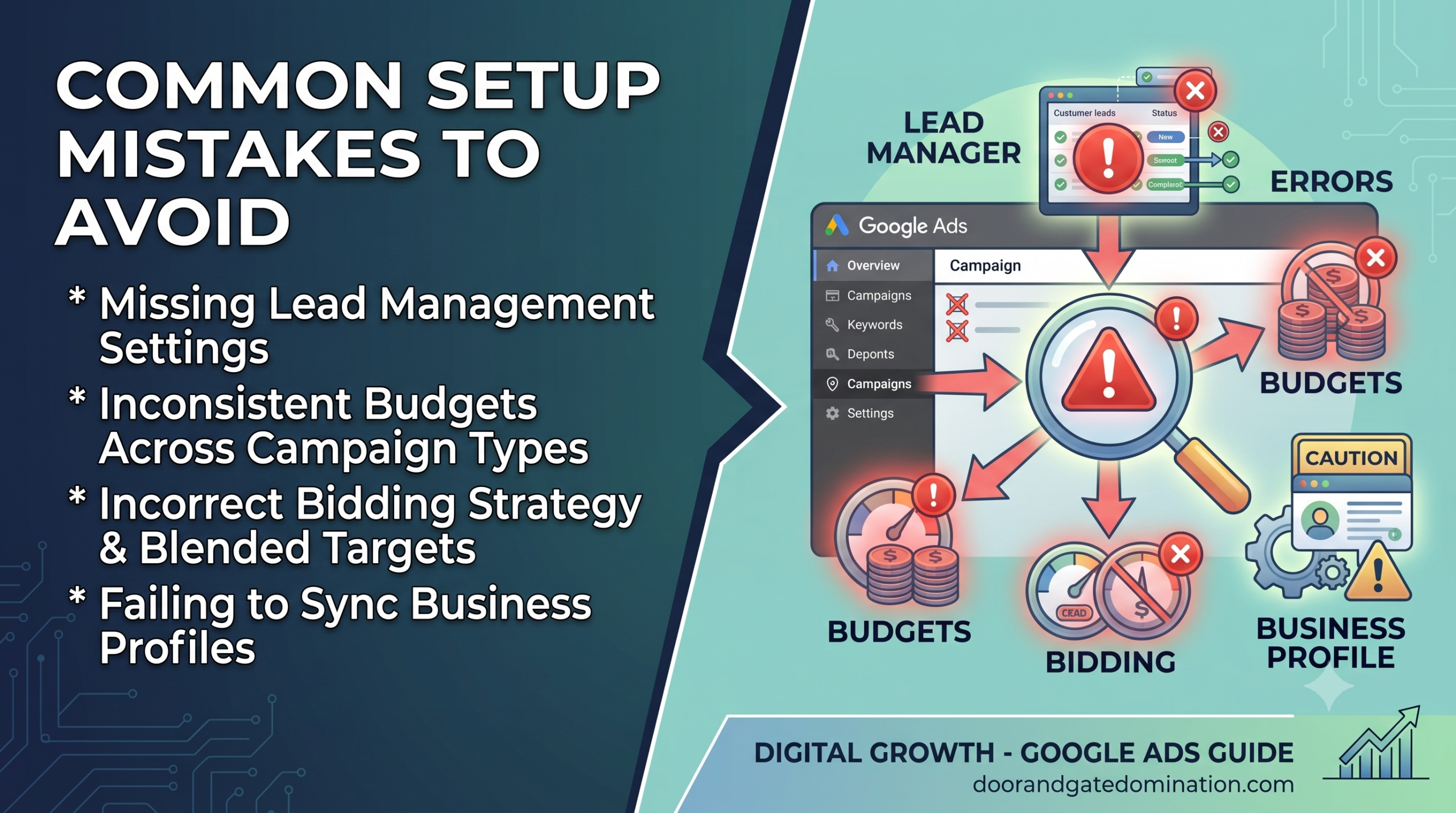
Google automates most of the transfer, but a handful of avoidable mistakes show up repeatedly once accounts land in Google Ads. Catching these early saves you from a confusing few weeks of chasing down why leads or spend look off.
Assuming the Converted Budget Matches Your Intent
A weekly-to-daily budget conversion should divide cleanly, but it doesn’t always land exactly where you’d expect if your spend pacing was uneven from week to week. Pull up your old weekly figure, divide it by seven, and compare that against what Google set automatically. If the numbers are meaningfully different, adjust it manually rather than assuming the system got it right.
Leaving BBB Callouts Blank Instead of Replacing Them
Since Better Business Bureau callouts are being removed entirely, some advertisers simply let that space go empty rather than filling it with something else. That’s a missed opportunity. Google recommends at least six alternative callouts, and leaving that section blank means losing a small but real piece of ad real estate that used to build trust with potential customers.
Not Updating Internal Team Documentation
The dashboard your team has used for years is gone, and any internal training materials, screenshots, or standard operating procedures built around the old LSA inbox are now outdated. Teams that skip updating this documentation tend to see leads sit unanswered simply because nobody knew to check Goals > Conversions > Leads instead of the old inbox.
Forgetting to Check for Verification Pauses
If your business name, address, or hours change around the same time as migration, the resulting Google Business Profile sync can trigger a verification review that pauses your campaign for 24 to 48 hours. Advertisers who don’t know this is normal sometimes assume something broke and start making unnecessary changes, which can extend the pause rather than resolve it.
Managing Local Services Ads for Multiple Locations
If you run more than one location, franchise, or service area under the same brand, this migration adds a layer of complexity worth planning for ahead of time.
Track Each Location’s Timeline Separately
- Each location’s campaign migrates on its own schedule, based on vertical and configuration
- Some locations may move in Phase 1 while others wait until Phase 2 or later
- Don’t assume all locations migrate together
Review Budgets and Target CPA Per Location
- Budgets and Target CPA are managed independently per campaign
- Check each location’s converted daily budget and unified cost target individually
- Pay close attention if locations have different lead costs due to local competition or market size
Keep Every Location’s Business Profile Current
- Google Business Profile now feeds directly into each campaign
- An outdated profile is more likely to trigger a verification pause once it syncs
- Update all locations’ profiles before migration, not after
Making the Most of Local Services Ads in Google Ads
Managing Local Services Ads inside Google Ads isn’t complicated once you know where things moved to, but the muscle memory from the old dashboard won’t carry over automatically. Spend an hour walking through your transferred settings, get comfortable with Lead Manager, and update your team’s process documentation before you need it in a hurry.
Door & Gate Domination manages Local Services campaigns for our garage door and gate service clients directly inside Google Ads, so their leads and budgets stay on track through workflow changes like this one. Contact us today or give us a call if you’d like help managing your account through the transition.